Introduction
Creating app protection policies is a moderately complex task that requires no coding but demands careful planning. Misconfigured policies can silently fail to protect corporate data, leaving sensitive information exposed even on enrolled devices—a critical risk when 80-90% of successful ransomware compromises originate through unmanaged devices.
IT administrators or security engineers with appropriate admin roles should own this setup. For smaller teams without dedicated IT staff, centralized platforms like Osto reduce that burden considerably — providing unified visibility, policy management, and Zero Trust access enforcement without requiring enterprise-scale IT resources.
Whether you're managing this in-house or through a unified platform, this guide covers the complete process: creating, configuring, assigning, and validating app protection policies — from prerequisites through post-deployment checks — including the platform-specific nuances that cause most real-world failures.
Key Takeaways
- App protection policies control how corporate data is accessed and shared within mobile apps, with or without device enrollment — critical for BYOD environments where you can't manage the device itself
- Choose from three protection levels (Basic, Enhanced, High) based on data sensitivity and user risk profile
- Setup requires appropriate admin licensing, a supported management platform, and SDK-compatible apps
- Follow this sequence: create policy → configure data protection and access settings → assign to groups → validate delivery
- Most failures stem from iOS VPP app requirements, missing Android Company Portal, or overlooking Conditional Access integration
What Are App Protection Policies and Why They Matter
App protection policies (APPs) are rules that keep organizational data safe within managed apps regardless of device enrollment status. The key distinction from MDM: APPs protect the app and its data, not the entire device — making them ideal for BYOD scenarios where enrolling the full device isn't feasible or wanted.
Three Protection Levels
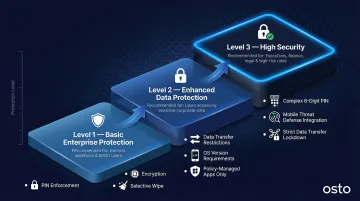
The data protection framework defines three levels that help teams decide where to start:
Level 1 — Basic Enterprise Protection:
- Minimum protection with PIN enforcement, encryption, and selective wipe
- Suitable as an entry point for most organizations
- 4-digit numeric PIN accepted
- Allows data transfer to all apps
Level 2 — Enhanced Data Protection:
- Adds data transfer restrictions and OS version requirements
- Recommended for users accessing sensitive business data
- Restricts data transfer to policy-managed apps only
- Enforces minimum OS versions to block access from unpatched devices
Level 3 — High Security:
- Reserved for high-risk users or regulated industries
- Requires a minimum 6-digit complex PIN with periodic resets
- Integrates Mobile Threat Defense (MTD) to enforce device threat level checks
- Enforces strict data transfer lockdown with advanced conditional launch controls
MAM vs. MDM: Understanding the Distinction
APPs alone are sufficient when device enrollment isn't possible or desired — this is the core MAM-without-MDM use case. Pair them with Conditional Access policies to enforce access controls at the authentication layer. Research indicates users are 71% more likely to be infected on an unmanaged device, which is why combining APPs with Conditional Access closes the gap that device enrollment alone can't cover on BYOD.
Before You Begin: Prerequisites and Requirements
Two things must be in place before you touch any policy settings: the right license tier and the right admin role. The configuring admin needs a license that includes mobile application management (MAM) capabilities and must hold an Intune Administrator or Global Administrator role in the tenant.
Licensing Requirements
Microsoft Intune Plan 1, which includes App Protection Policies, is bundled with several major licensing suites:
- Microsoft 365 E3 / E5
- Enterprise Mobility + Security (EMS) E3 / E5
- Microsoft 365 Business Premium
- Microsoft 365 F1 / F3
- Microsoft 365 Government G3 / G5
Note: Device-only licenses do not support Intune app protection policies or Conditional Access.
Admin Roles and Permissions
To create, edit, and assign App Protection Policies, administrators need specific Role-Based Access Control (RBAC) permissions:
- Application Manager role includes the necessary "Managed apps" permissions (Assign, Create, Delete, Read, Update, Wipe)
- Intune Administrator and Global Administrator roles have full read/write access to all Intune data
- Custom roles can be created and scoped specifically to "Managed apps" actions to enforce least-privilege access
Compatible Apps and SDK Requirements
Not all apps support protection policies out of the box. Apps must have the Intune SDK integrated or be wrapped using the Intune App Wrapping Tool before policies can apply to them.
Core Microsoft apps are supported by default:
- Microsoft Edge, Outlook, Teams
- Word, Excel, PowerPoint, OneNote
- OneDrive, SharePoint, Office (Microsoft 365)
- To Do
Third-party and line-of-business apps need SDK integration before policies can apply to them.
iOS-Specific Requirement
Only VPP (Volume Purchase Program) managed apps can satisfy a Conditional Access "Require app protection policy" control on iOS. Standard App Store installs do not qualify. Deploy apps as VPP apps through the management portal before configuring policies.
Environment and Platform Readiness
Identify all target platforms (iOS/iPadOS, Android, Windows) before starting:
Android devices require:
- Intune Company Portal installed
- User signed in with a corporate account for policy delivery to work
- Minimum Company Portal version 5.0.5421.0 (support for earlier versions ended October 1, 2025)
iOS devices require:
- Apps deployed as VPP-managed apps (not standard App Store installs)
- App configuration policies with required keys (
IntuneMAMUPN,IntuneMAMOID,IntuneMAMDeviceID)
Also review any existing Conditional Access policies in your tenant. Policies using "Require app protection policy" as a grant control will directly interact with the APP configuration you're about to create—misalignment between the two can block user access unexpectedly.
How to Create and Configure App Protection Policies: Step-by-Step
Policy creation follows a defined sequence within the admin portal. Skipping steps or creating a policy without completing the assignment and validation phases is one of the most common reasons policies appear to be active but fail to enforce.
Access the Policy Creation Interface
Navigate to Apps > Protection in the Intune admin center. Select Create policy and choose the target platform (iOS/iPadOS or Android). Windows app protection policies follow a different creation path — they enable protected MAM access via Microsoft Edge on personal Windows devices.
Define Policy Basics
Provide a descriptive policy name that reflects its scope and protection level (e.g., "iOS-Level2-FinanceTeam") and an optional description. Clear naming conventions are critical when managing multiple policies across user groups and platforms.
Select Target Apps
Choose the apps this policy will govern—the Core Microsoft Apps group is the recommended starting point. Add third-party or line-of-business (LOB) apps that have SDK integration. Avoid creating overly narrow per-app policies when a broader group policy achieves the same outcome.
Configure Protection Settings
Work through the three settings tabs in sequence (Data Protection, Access Requirements, Conditional Launch)—covered in detail in the next section. Confirm that settings align with the chosen protection level (L1, L2, or L3) before proceeding to assignment.
Assign the Policy to User Groups
Assign the policy to specific Azure AD user groups rather than all users immediately. Use a ring deployment approach:
- QA (0-30 days): Start with a QA or IT group in a pre-production or test environment
- Preview (7-14 days post-QA): Expand to a Preview group of production users
- Production (7 days to several weeks post-Preview): Roll out to the full user population
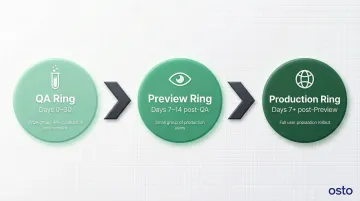
Staged rollouts catch enforcement problems before they reach your full user base.
Post-Assignment Validation
After assignment, verify that policies are reaching devices correctly:
On devices:
- Use Microsoft Edge and navigate to
edge://intunehelp/(orabout:intunehelpon older Edge versions) to review the active app protection policy settings applied to that device - Test policy behavior end-to-end: attempt actions that should be blocked (e.g., copy-pasting corporate data into an unmanaged app, taking a screen capture if blocked)
In the admin center:
- Navigate to Apps > Monitor > App protection status
- Confirm that the policy status shows as applied for the target users
- Review the "last sync" timestamp for affected users
Skipping validation means enforcement gaps go undetected until users report access failures — at which point tracing the root cause becomes significantly harder.
Key Settings to Configure: Data Protection, Access, and Conditional Launch
App protection policy settings fall into three categories, each serving a distinct security function. Administrators should configure all three to achieve complete protection. Leaving any category at its default without reviewing it is a common source of gaps.
Data Protection Settings
Data transfer controls are the most impactful settings:
Send org data to other apps / Receive data from other apps:
- Level 1: Allows all apps
- Level 2: Restricts to policy-managed apps only
- Level 3: Adds further restrictions on data entry sources
Additional controls:
- Cut/copy/paste restrictions
- Backup blocking
- Screen capture blocking (Android)
Encryption: Set to Require for both iOS and Android to ensure organizational data is protected at rest within the app. On Android, a separate "Encrypt org data on enrolled devices" setting also applies and defaults to Require.
Access Requirements
PIN Configuration: PIN type, minimum length, and biometric override behavior are the primary access controls:
| Setting | Level 1 (Basic) | Level 3 (High) |
|---|---|---|
| Minimum PIN length | 4 | 6 |
| Simple PIN | Allow | Block |
| PIN reset after days | No | Yes (365 days) |
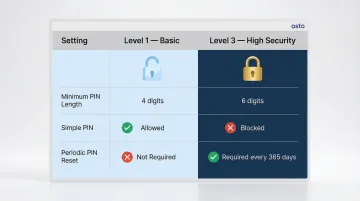
Stronger PIN requirements increase friction — communicate changes to users before enforcing them.
Recheck access requirements after inactivity defaults to 30 minutes and controls how frequently the policy re-validates. Set it too low and users face constant interruptions; set it too high and a lost or compromised device goes unchallenged for longer than acceptable.
Conditional Launch Settings
App conditions:
- Max PIN attempts: Default = 5 (trigger PIN reset or data wipe after failed attempts)
- Offline grace period: Default = 1440 minutes (24 hours) to block access; 90 days to wipe data
Device conditions (platform-specific):
- Jailbreak/root detection: Block access or wipe
- Minimum OS version requirements: Prevent access from unpatched devices
- Android Play Integrity attestation: Enforce Basic integrity or Basic integrity & certified devices; enable strong integrity check for hardware-backed attestation
- Mobile Threat Defense (MTD): Configure "Max allowed device threat level" (Secured, Low, Medium, High) for Level 3 protection
At Level 3, set the MTD threat level to "Secured" and configure the action to Block access — this ensures devices with any detected threat cannot reach organizational data.
Common App Protection Policy Problems and How to Fix Them
These three scenarios cover the most common app protection policy failures — each with a specific cause and targeted fix.
iOS Users Fail Conditional Access Despite App Protection Policy Being Assigned
Symptom: Users on iOS receive an access denied or "policy not assigned" error even when an app protection policy exists.
Why it happens: The standard iOS App Store version of an app is installed instead of the VPP-managed version. Only VPP apps are considered "managed" and can satisfy the Conditional Access "Require app protection policy" grant control.
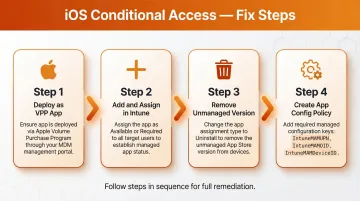
Fix:
- Ensure the app is deployed as an Apple VPP app through the management portal
- Add the apps to Intune and assign them as Available or Required to take over management
- Change the assignment type to Uninstall to remove the unmanaged App Store version
- Create an app configuration policy with the required managed app configuration keys (
IntuneMAMUPN,IntuneMAMOID,IntuneMAMDeviceID)
Android Devices Not Receiving App Protection Policy
Symptom: App protection policy shows as assigned in the admin console but the device is not enforcing it.
Why it happens: The Intune Company Portal is not installed, not signed in with the corporate account, or running an outdated version.
Fix:
- Confirm Company Portal is installed and the user is signed in with their organizational account
- Check for minimum Company Portal version requirements set in the Conditional Launch settings (minimum version 5.0.5421.0 as of October 2025)
- Review the admin center monitoring dashboard to confirm per-user policy delivery status at Apps > Monitor > App protection status
Policy Changes Not Reflecting on Devices After Update
Symptom: An existing app protection policy is updated but devices continue to enforce the old settings.
Policy delivery isn't instantaneous — devices that are offline or have the app backgrounded may not receive updates right away.
Fix:
- Policy updates typically push every 30 minutes for active users; allow that window before escalating
- Use the monitoring view in the admin center to check the "last sync" status for affected users
- For urgent changes, ask users to open the affected app while online to trigger a policy refresh
Conclusion
App protection policy quality directly affects whether corporate data is truly protected. A policy that exists in the admin console but is misconfigured, misassigned, or never validated leaves data transfer gaps on BYOD and managed devices alike.
For organizations managing mobile security without a large IT team, consolidating app protection policy monitoring alongside other security controls in a unified platform significantly reduces blind spots. Platforms like Osto give growing businesses centralized visibility across endpoints, cloud infrastructure, and web applications—including Zero Trust access enforcement—from a single dashboard, without requiring enterprise-scale IT resources.
That unified approach means small security teams can maintain the same security controls that larger organizations rely on, without juggling multiple disconnected tools.
Frequently Asked Questions
What is the difference between app protection policies and device compliance policies?
App protection policies govern data behavior within specific apps (MAM layer) while device compliance policies evaluate the overall security state of the device (MDM layer). Both can work together but serve distinct purposes—APPs protect app-layer data, compliance policies assess device-wide security posture.
Do app protection policies require device enrollment in an MDM solution?
No. App protection policies can be applied without full device enrollment—this is the core MAM-without-MDM use case, making them viable even when a device is never registered with Intune or another MDM solution.
Can app protection policies be applied to personal devices?
Yes. App protection policies are designed to work on personal devices, protecting only the organizational data and app experience without touching personal apps or data on the same device. This separation makes APPs ideal for BYOD scenarios.
Which apps support app protection policies?
Apps must have the Intune SDK integrated or be wrapped using the App Wrapping Tool. Core Microsoft apps (Edge, Outlook, Teams, Office suite, OneDrive, and others) are supported by default. Third-party or line-of-business apps require SDK integration before they can be targeted.
How long does it take for app protection policies to apply after they are assigned?
The policy applies the next time the user opens the targeted app while authenticated and online—typically within 30 minutes for registered users. Delivery status can be monitored per user in the admin center at Apps > Monitor > App protection status.
What happens when a user fails to meet an app protection policy conditional launch condition?
The configured action is triggered. Options include Warn (notification, dismissible), Block access (app access denied until condition is resolved), or Wipe data (organizational data removed from the app). The specific action depends on how each condition was configured in the policy.